
How to photograph coffee by a window with your iPhone
A cup of coffee is a useful subject for learning to see light. It stays where you put it, its rim gives you a clear shape to frame, and the handle makes small changes in angle easy to notice. You do not need a styled café or a collection of props. Start with one cup, a table and a window, then change one thing at a time.
Start with the light you can see
Place the cup near a window and look at the edge of its shadow. Side light can make the cup’s shape easier to see; Nikon’s food-photography guidance also recommends trying natural light from the side. If direct sunshine gives you a very sharp shadow, decide whether that graphic shape suits your picture. If you want a softer appearance, try a nearby spot outside the direct beam. The distance is a starting point to explore, not a fixed recipe.
Take a moment to look before opening the camera. Which side of the cup is brightest? Is the handle lost against the background? Rotate the cup a little while keeping the phone in one place. Watch how the highlight and the handle change. When you find an arrangement you like, leave it alone for the first shot.
Give the cup a clear place in the picture
Remove the receipt, keys or bright wrapper if they are pulling your attention away from the coffee. Keep a spoon or napkin only if it adds something you want to show. A simple table is an exercise in choosing, not a rule that every photograph must be empty.
Leave a small margin around the handle and saucer. Check all four corners before shooting: a tiny sliver of another chair can become surprisingly noticeable in a small image. If the table edge crosses the cup awkwardly, move the phone a few centimetres to the side and look again.
Choose what the angle should reveal
For foam or latte art, try a view from above. For the cup’s profile and handle, lower the phone and look across the table. For a first comparison, make one shot from above and one from a comfortable diagonal angle. Do not add a third prop or change the light between them; that makes the effect of the angle harder to judge.
Keep the phone steady with both hands and pause before pressing the shutter. If your own shadow covers the cup, move around the table rather than leaning closer. Make the composition fit the position where the light still works.
Set focus and brightness deliberately
In Apple’s Camera app, tap the part of the cup you want to focus on. You can adjust brightness by dragging the exposure control beside the focus area. Apple documents these controls in its iPhone User Guide. These are Apple Camera instructions, not a promise that another camera app has the same controls.
Look for visible detail in the bright rim as well as in the coffee. If the cup becomes very dark when the window enters the frame, first try leaving the window itself outside the picture. Do not brighten every shadow automatically: compare whether the darker area helps describe the cup.
Make a three-frame exercise
Frame one: keep your initial angle and photograph the simplest arrangement. Frame two: move to a higher or lower viewpoint without moving the cup. Frame three: return to your preferred angle and adjust only the handle or the amount of empty table. Compare the images at the same display size.
Choose using three questions: does my eye find the cup immediately, can I see the detail I care about, and do the edges feel intentional? Keep the version that answers your own purpose. A brighter picture or a tighter crop is not automatically the better one.
Use Take PRO as a framing companion
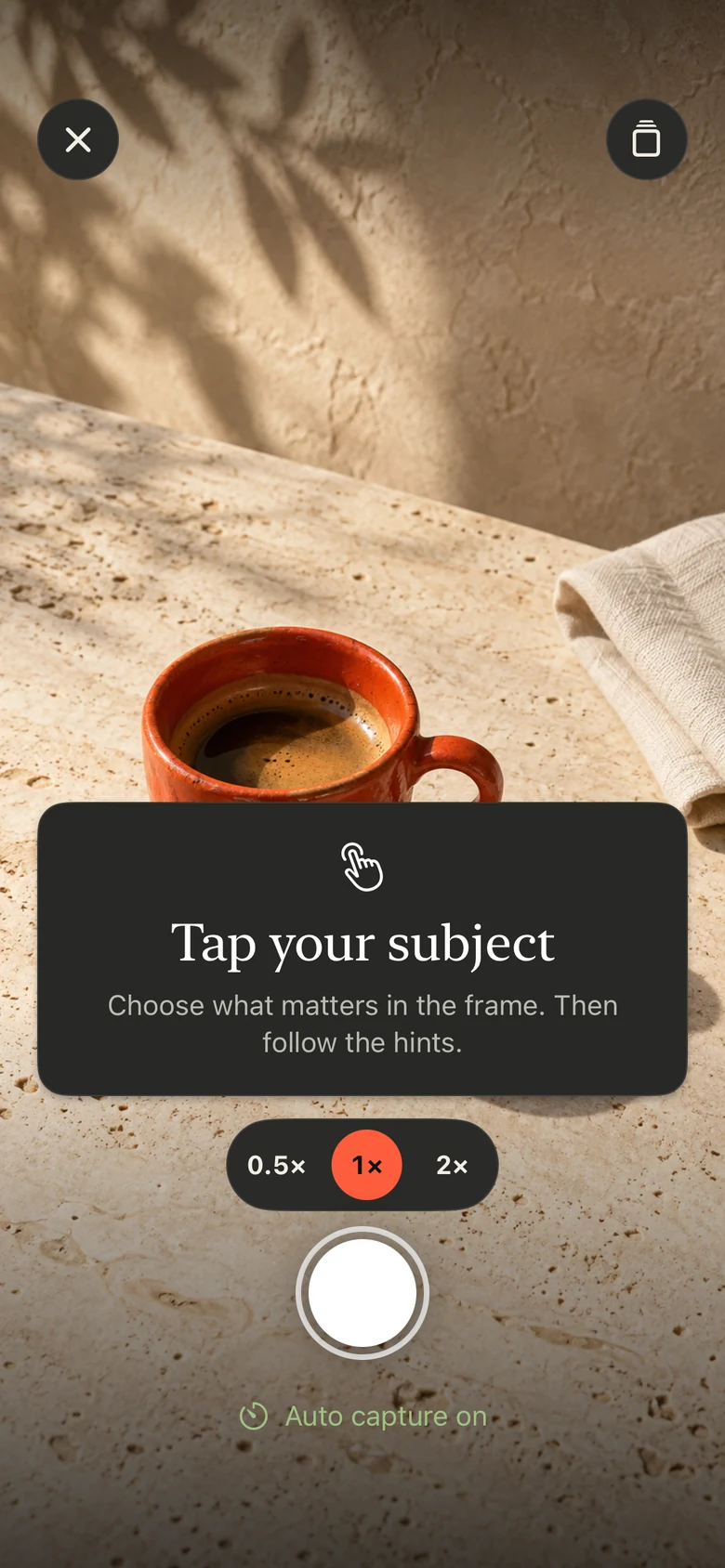
Take PRO for iPhone lets you choose a subject and follow on-screen framing guidance. You can explore it while practising this setup, then decide which photograph you want to keep. The lighting and composition exercise above also works with the built-in Camera app.
The linked App Store listing describes the current app and in-app purchases. We do not assume every feature is available without a subscription. The demo interface is in English. See the product page for an overview and the App Store for the current offer.